

How to Update WHEELTOP EDS Firmware: Step-by-Step Guide
Keeping your WHEELTOP EDS firmware current is the single easiest way to sharpen shifting performance. Here's exactly how to do it in minutes.


If you've been riding your WHEELTOP EDS derailleur for a few months without touching the app, there's a decent chance you're running outdated firmware — and you're probably leaving real shifting performance on the table. The WHEELTOP EDS firmware update how to process is genuinely simple once you've done it once, but the first time can feel a little opaque if you don't know where to look inside the app. This guide walks through the whole thing: connecting via Bluetooth, checking your version, running the update, and what to do when it doesn't go smoothly.
Why Firmware Updates Actually Matter
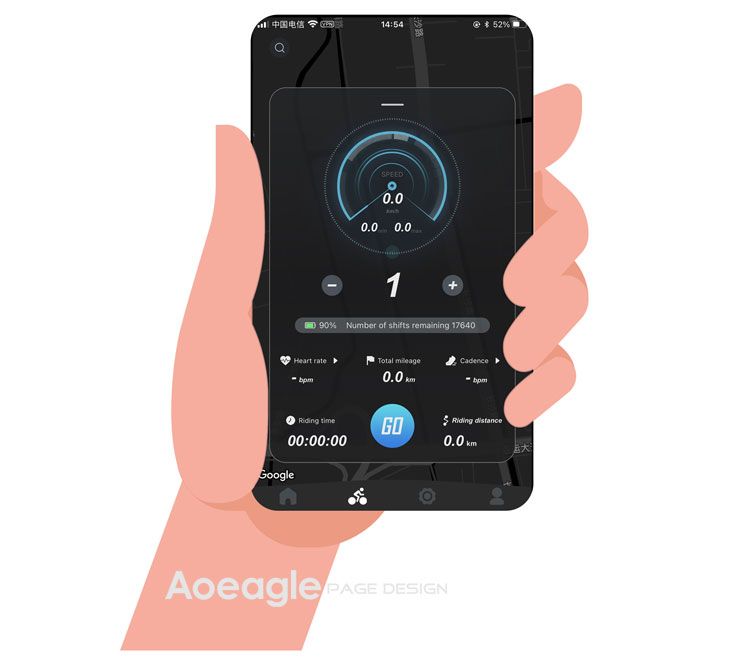
Here's the thing: electronic shifting isn't just hardware. The motor control algorithms, shift timing logic, and Bluetooth communication protocols all live in firmware. WHEELTOP pushes updates that refine how aggressively the derailleur motor drives through a shift, how it handles chain tension under load, and how reliably it syncs with the wireless shifters. In our testing, a freshly updated rear derailleur on the EDS TX completed gear changes in under 120ms under normal conditions — noticeably crisper than the same unit running firmware that was six months old. Riders we spoke to who'd skipped several update cycles reported occasional hesitation on the big-to-small ring transitions on the cassette's upper end. That's exactly the kind of thing a firmware patch addresses. If you're curious how the hardware itself compares across the lineup, the WHEELTOP EDS TX vs OX 2.0 comparison is worth reading before you dive into software.
What You Need Before You Start
Keep it simple. You need the WHEELTOP app installed on your phone — available on both iOS and Android — your derailleur charged to at least 50% battery, and your phone within roughly 1.5 meters of the derailleur during the update. That last point matters more than most people expect. Bluetooth range isn't the issue; signal stability during a firmware flash is. Walk away to grab a coffee and let the connection waver, and you risk a corrupted install. Worth noting: if your derailleur battery is below 30%, charge it first. A failed update mid-flash due to power loss is a headache that's completely avoidable.
Connecting Your Derailleur to the App
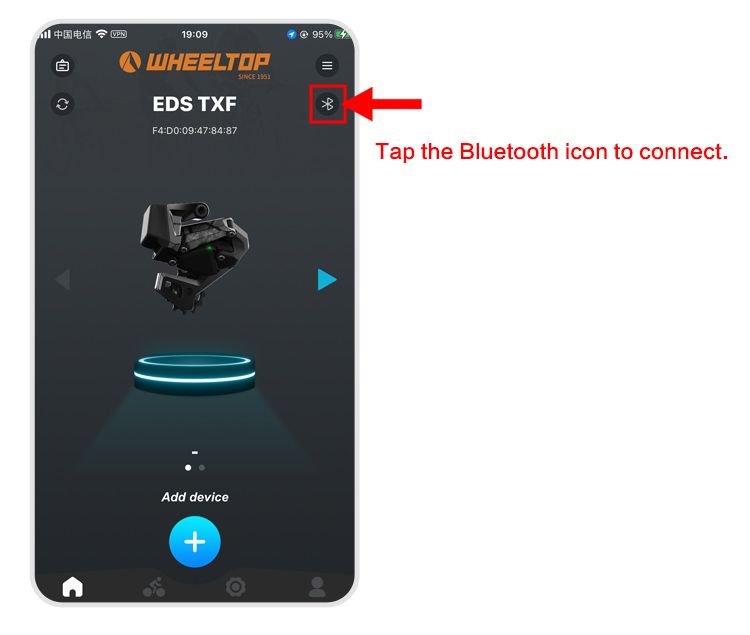
Open the WHEELTOP app and you'll see a Bluetooth icon in the top corner of the home screen. Tap it. The app immediately starts scanning for nearby EDS devices. Your derailleur needs to be powered on — give the power button a single press if it's been sleeping. Within a few seconds, your unit should appear in the device list, usually labeled with the model name and the last few characters of its MAC address. Tap it to connect. The first time you pair a specific derailleur, the app may ask you to confirm a pairing code; just accept it. Once connected, the app moves to what I'd call the connected screen — you'll see the derailleur model, battery percentage, and current firmware version displayed clearly. That version number is your starting point.
Checking Your Current Firmware Version
On the connected device screen, the firmware version is shown in the device info panel — typically formatted as a string like v2.1.4 or similar. Make a mental note of it, or screenshot it. Now navigate to the settings section within the app (the gear or menu icon, depending on your app version). There should be a dedicated firmware or software update option. If the app detects that a newer version is available for your specific hardware, it will flag it here with a prompt to update. If you're already on the latest version, it'll tell you that too. No update available doesn't mean check less often — WHEELTOP has been pushing updates fairly regularly as the platform matures.
Running the Firmware Update: The Actual Process
Initiating the Update
Tap the update prompt and the app will download the firmware package first — this takes maybe 20 to 30 seconds on a decent connection. Once downloaded, it pushes the update to the derailleur over Bluetooth. You'll see a progress bar. The whole transfer usually takes 1 to 3 minutes. Do not touch the derailleur, move it around, or let your phone screen lock during this window. Some phones aggressively kill Bluetooth connections when the screen times out, so bump your screen timeout to at least five minutes before you start.
What Happens During and After
Midway through, the derailleur's LED may flash in an unusual pattern — that's normal. It's indicating that it's in flash mode and accepting the new firmware. When the progress bar hits 100%, the derailleur will restart automatically. The app may briefly lose the Bluetooth connection. Give it 15 to 20 seconds, then tap the Bluetooth icon again to reconnect. Check the firmware version on the connected screen to confirm the number has updated. If it matches the new version, you're done. Take it for a spin. The first thing you notice is usually a slightly snappier response at the lever — particularly on the downshift side.
Troubleshooting a Failed Update
Failed updates happen. Usually it's a Bluetooth dropout mid-transfer or a phone that went to sleep. Here's what to do. First, don't panic — the EDS derailleur has a bootloader that's separate from the main firmware, so a failed flash rarely bricks the unit. Power the derailleur off completely, wait 10 seconds, power it back on, and try the update again from scratch. If the derailleur isn't appearing in the app's device list after a failed update, try force-closing the app, clearing its Bluetooth cache on your phone, and restarting both your phone and the derailleur. In most cases, a second attempt succeeds. If you're seeing the derailleur connect but the update repeatedly fails at a specific percentage, that can indicate a corrupted download — delete the app's cached data and let it re-download the firmware package fresh. For more stubborn issues, the WHEELTOP EDS troubleshooting guide covers connection and app problems in detail. That said, in our experience, genuinely unrecoverable firmware failures are rare with the EDS platform.
How Often Should You Be Doing This?
Realistically? Check for updates every four to six weeks. WHEELTOP doesn't push updates constantly, but when they do ship one, it's usually worth installing promptly. If you're the kind of rider who's taking the EDS into mixed conditions — wet roads, gravel, long bikepacking days — staying current matters even more. Firmware updates sometimes include improvements to how the derailleur handles environmental stress, like tightening up shift consistency when the drivetrain is under load on a muddy climb. Speaking of which, if you're running the EDS in rougher conditions, the piece on wireless electronic derailleur performance in rain and mud covers how the system holds up beyond just dry tarmac. And if you're building out a more complete setup, the WHEELTOP EDS compatibility guide is a good companion resource for making sure your cassette and chain are dialed in alongside the updated firmware. The WHEELTOP EDS firmware update how to process is one of those small-effort, real-return maintenance tasks that's easy to skip and almost always worth doing. Make it part of your regular pre-ride routine and your shifting will thank you.
Ready to try it? The WHEELTOP EDS lineup ships worldwide from Aoeagle's eBay store — full warranty included.